Guides · The tabs
The Potential videos tab
Updated 11/02/2026 · screenshots from app version 0.6.5
This article helps you read the Potential videos tab: which videos go into the tab, what each video card tells you, and the buttons on the card.
Which videos the tab shows
Potential videos are new videos, under 7 days old, whose ad count is rising fast in the scanned data. A video must meet all of these conditions:
- Win + Scale over 50 ads.
- No Old ads yet (ads that have been live for over 14 days).
- Has a sales link.
- Fully dug. Videos that haven’t been dug yet sit in the Deep dive tab; once dug, they come here automatically if they pass the rules.
The video is so new that no ad has had time to survive 7 days. That is why this tab’s Win column is almost always 0, and the video can’t enter the Winning videos tab yet. This tab catches videos one step earlier. For each condition in detail, see How SpyWinAds divides Win, Scale and Old.
The tab only shows videos scanned by the app on your computer. The numbers on each video are cumulative across the whole library. Videos getting new ads fastest (most ads per day) are at the top.
Reading a video card
By default the tab shows a Grid. Each card reads top to bottom:
- The video age ring. The number inside the ring is the video’s age in days. Next to it is the date of that milestone, labeled “Video file first on Meta”, or “First ad on Meta” if the file date couldn’t be read.
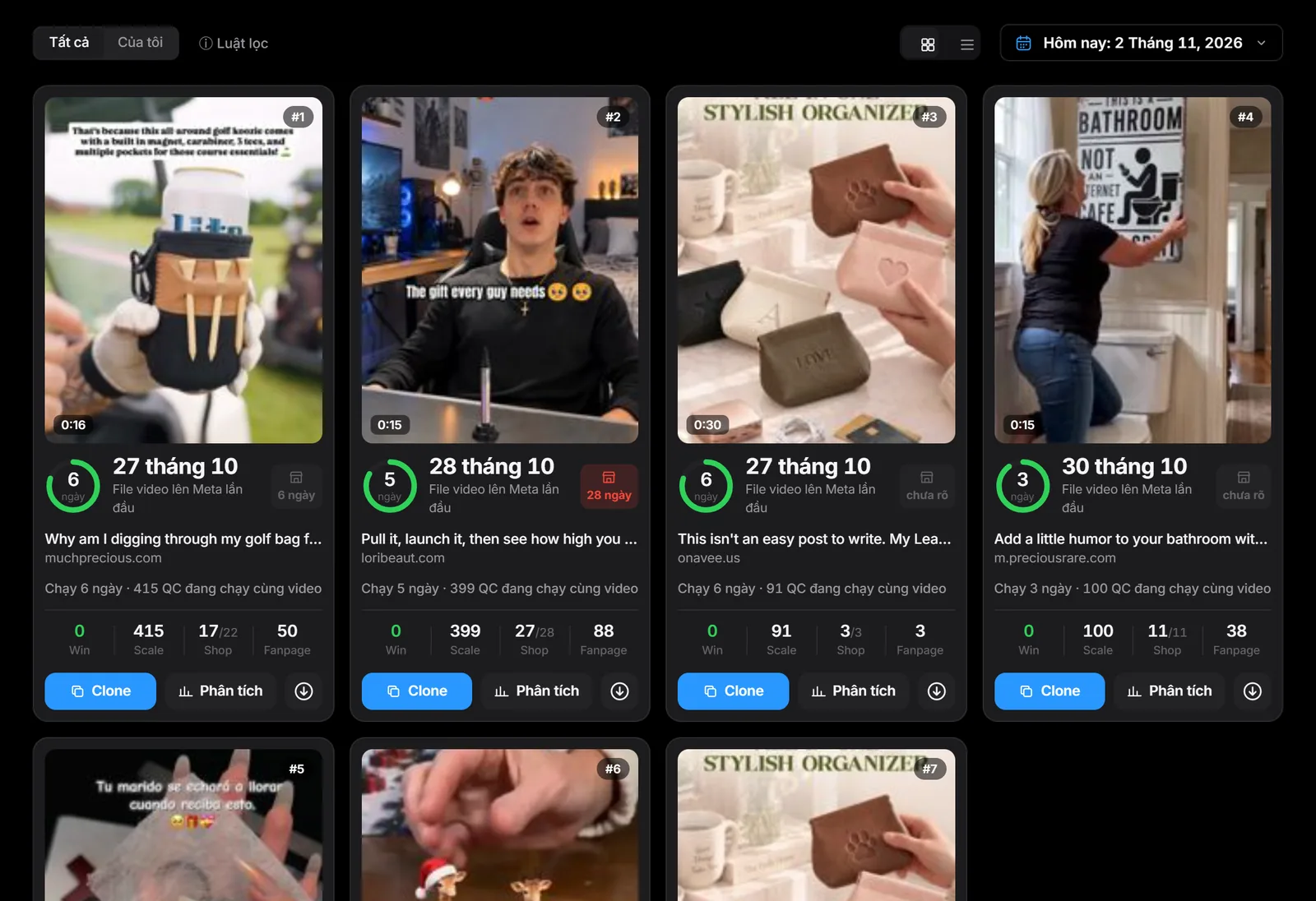
- The store icon box is the age of the sales page (selling URL). “unknown” means the page’s creation date couldn’t be read. The ≈ sign marks an estimated date. The box changes color as a warning when the sales page is much older than the video: the product has been selling for a while and the video is just a remake.
- The video name, the selling price and the shop domain.
- The line “Running … days · … ads running with this video”: the number of days since the first ad, and the total ads of the video that are still running.
- Four numbers: Win is ads live for 7–14 days and still running. Scale is ads live for under 7 days. Shops is the number of shops running / shops that ever ran the video, with each domain counted as one shop. Pages is the number of pages running the video.
To see a table view, click the Table button (the three-line icon) next to the Grid button at the top right. The table has the columns Video age, URL age, Win, Scale, Shops, Pages, Traffic, Tab. The date picker at the top right switches the Win, Scale, Shops and Pages numbers to the date you choose. Click “ⓘ Filter rules” to see the tab’s rules right in the app.
Buttons on the card
- Video thumbnail: hover over the image and the video plays automatically without sound. Click the image to watch with sound.
- Analysis: opens the detail panel on the right. The panel has the “Watchlist” and “Move to the Test videos tab” switches, the “Download video” and “Open store page ↗” buttons, the list of pages that sell it, the Watch history table by morning, and the “✕ Remove from table” button.
- Download icon: downloads the video file to your computer. A greyed-out button means the video link has expired; scan the keyword or store again to refresh it.
- Clone: appears when the video has a sales page. Sends the product to your Shopify store.
Use this tab when picking products
- Open the tab every day and look at the videos at the top of the list: these are the videos whose ads are climbing fastest.
- Look at the Shops column. Many shops running it is a sign that many people are testing this video, not proof that the video sells.
- Look at the sales page age box. A sales page much older than the video means an old product with a new video.
- For a video you want to keep following, click Analysis and turn on “Watchlist”. The video’s numbers will be refreshed every day.
- Big brands also climb in ads very fast. If you run into a video that doesn’t fit, click Analysis and then “✕ Remove from table”.
Related articles
Thank you.