Guides · The tabs
Watchlist and Test videos
Updated 11/02/2026 · screenshots from app version 0.6.5
This article helps you mark videos into two tabs of your own: Watchlist (videos you want to keep watching) and Test videos (videos you are running tests on).
Mark a video
- In any video tab, click Analyze on the video card (in Table view: click the row).
- In the detail panel, the This video section has two switches: “Watchlist” and “Move to the Test videos tab”.
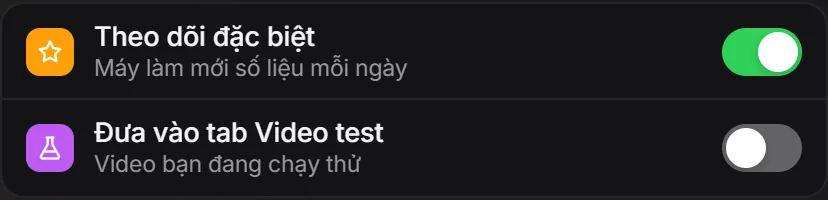
- Turn on the switch you need. The two switches are mutually exclusive: turning one on turns the other off.
- To remove a mark, turn off the switch that is on.
Marks belong to your account only. The app does not add videos to or remove videos from the Watchlist by itself.
The Watchlist tab
- A video with “Watchlist” on stays in its old tab (Winning videos, Potential videos, Scaling videos, Evergreen products) if it still meets the rules, and is also in the Watchlist tab. Like starring an email.
- This tab does not apply the Win rules: a video that is over 14 days old or out of ads is still kept.
- Recently updated videos are at the top.
The Test videos tab
- A video with “Move to the Test videos tab” on leaves Winning videos, Potential videos, Scaling videos and Evergreen products, and stays only in the Test videos tab.
- The tab does not apply the Win rules. Recently updated videos are at the top.
- Cards and rows have an extra Result box: a video you just added shows “Testing”. A video marked the old way may show “Profit” or “Loss”.
- Turn the switch off and the video goes back to its old tab if it still meets the rules.
How the numbers are refreshed
- Every day, each video in the tabs is refreshed once. Watchlist and Test videos are refreshed first.
- The app on your computer does this while the app is on.
- If your computer is off or Facebook has temporarily blocked it: overnight the server makes up for it, for up to 20 videos you marked yourself per day, if your app has been in contact recently.
- You can see the results in the Analysis panel, in the table Watch history: one row per morning, with Pages, Live shops, Win, Scale, URL and the change from the day before.
Use the two tabs when picking products
- When you find a video worth noticing in any tab, turn on “Watchlist” to watch it over several days.
- Every morning open the Watchlist tab and check the Watch history: do Win and Scale go up or down?
- When you start testing a product, turn on “Move to the Test videos tab” to keep the main tabs tidy.
The results “Testing”, “Profit”, “Loss” are recorded by you. The Win and Scale numbers in these two tabs are ad signals from other shops, not sales or profit.
Related articles
Did this article help you?
Thank you.