Guides · Getting started
Log in with email or Google
Updated 11/02/2026 · screenshots from app version 0.6.5
This article helps you create a SpyWinAds account and log in with email or a Google account.
The login screen has 2 tabs: “Log in” and “Sign up”. This screen appears when you open the app for the first time, or when you go to spywinads.com/dang-nhap in a browser.
Create an account with email
- Click the “Sign up” tab.
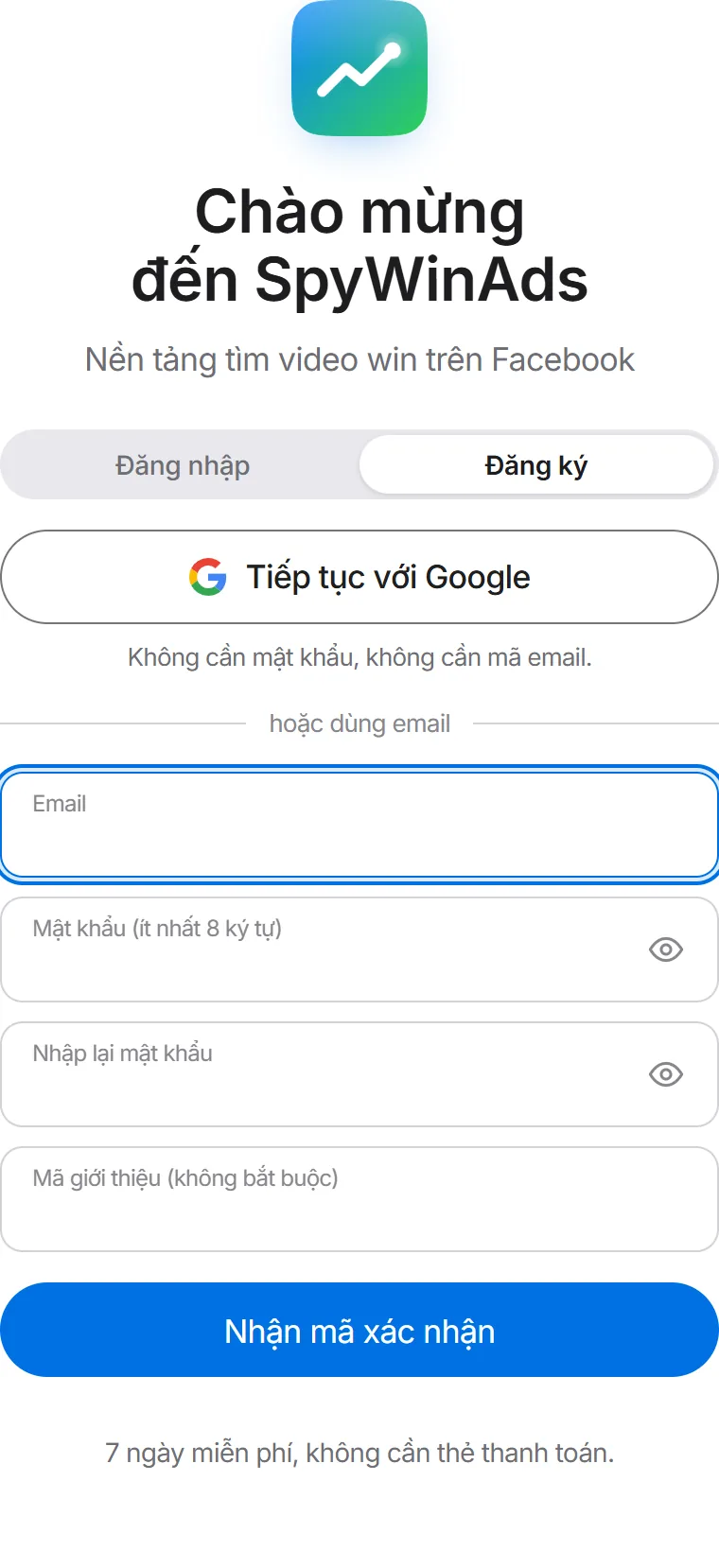
- Enter your email and password. The password must be at least 8 characters. Enter the password again in the third field. The “Referral code” field is optional.
- Click “Get verification code”. SpyWinAds sends a 6-digit code to your email.
- Enter the 6-digit code. Once you enter all 6 digits, you are taken into the app automatically. Don’t see the email? Check the Spam or Promotions folder. After a few seconds, a “Resend code” button appears.
Log in or sign up with Google
- Click “Continue with Google”. This button is on both tabs. No password and no email code needed.
- In a web browser: choose your Google account. That’s it, you’re in the app.
- In the desktop app: the app opens your computer’s browser and shows “Waiting for you to log in in the browser…”. Choose your Google account in the browser. The app logs in by itself, no need to paste a code. The browser tab says “Logged in” and you can close that tab.
Log in to Google in the browser on the same computer that is running the app. If you closed the browser by mistake, click “Reopen browser” in the app. An account created with Google has no password yet. If you want to log in with email, click “Forgot password?” to set a password.
Logging in next time
- Click the “Log in” tab.
- Enter your email and password, then click “Log in”. Or click “Continue with Google”.
When you log in inside the app, that computer is linked to your account. From then on, the app picks up your scans automatically. Log in on the web browser to view results; keyword scanning is only available in the app.
Forgot password
- On the “Log in” tab, click “Forgot password?”.
- Enter your account email and click “Send code”.
- Enter the 6-digit code from the email, enter a new password twice, and click “Save and log in”.
7-day trial
- New accounts get a free 7-day trial, no card required. The 7 days count from the moment you create the account, in Vietnam time.
- Each computer can only use the free trial once. If a computer has already been used for a trial with another account, the app no longer picks up scans. Upgrade your plan to keep scanning on that computer.
- After 7 days, the app stops scanning and the web shows the plan selection screen. No fee is charged automatically.
Details are in the Trial Policy.
Error messages
| Message | What to do |
|---|---|
| “This email already has an account” | Click the “Log in” tab and log in with that email. |
| “Incorrect code” or “The code has expired, please request a new one” | Check the code in the latest email, or click “Resend code”. |
| “Incorrect email or password” | Type it again, or click “Forgot password?”. |
| “Not logged in with Google. Try again or use email.” | Click “Continue with Google” again and choose your account in that computer’s browser. |
| “This Gmail address has not been verified by Google.” | Use a different email, or create an account with email and a 6-digit code. |
Related articles
Did this article help you?
Thank you.