Guides · The tabs
Shop library, Session history and Scanned videos
Updated 11/02/2026 · screenshots from app version 0.6.5
This article helps you use three tabs to review scan results: Scanned videos, Session history and Shop library. All three only show what your own account has scanned.
Scanned videos
This tab groups videos by each of your scan runs. It only shows videos with a sales link.
- Open the Scanned videos in the “Mine” group on the left.
- Pick a date with the date picker at the top right. The row of chips below shows the scan runs of that day (start time and topic or number of keywords). Click a chip to view only that run, or “All scans”.
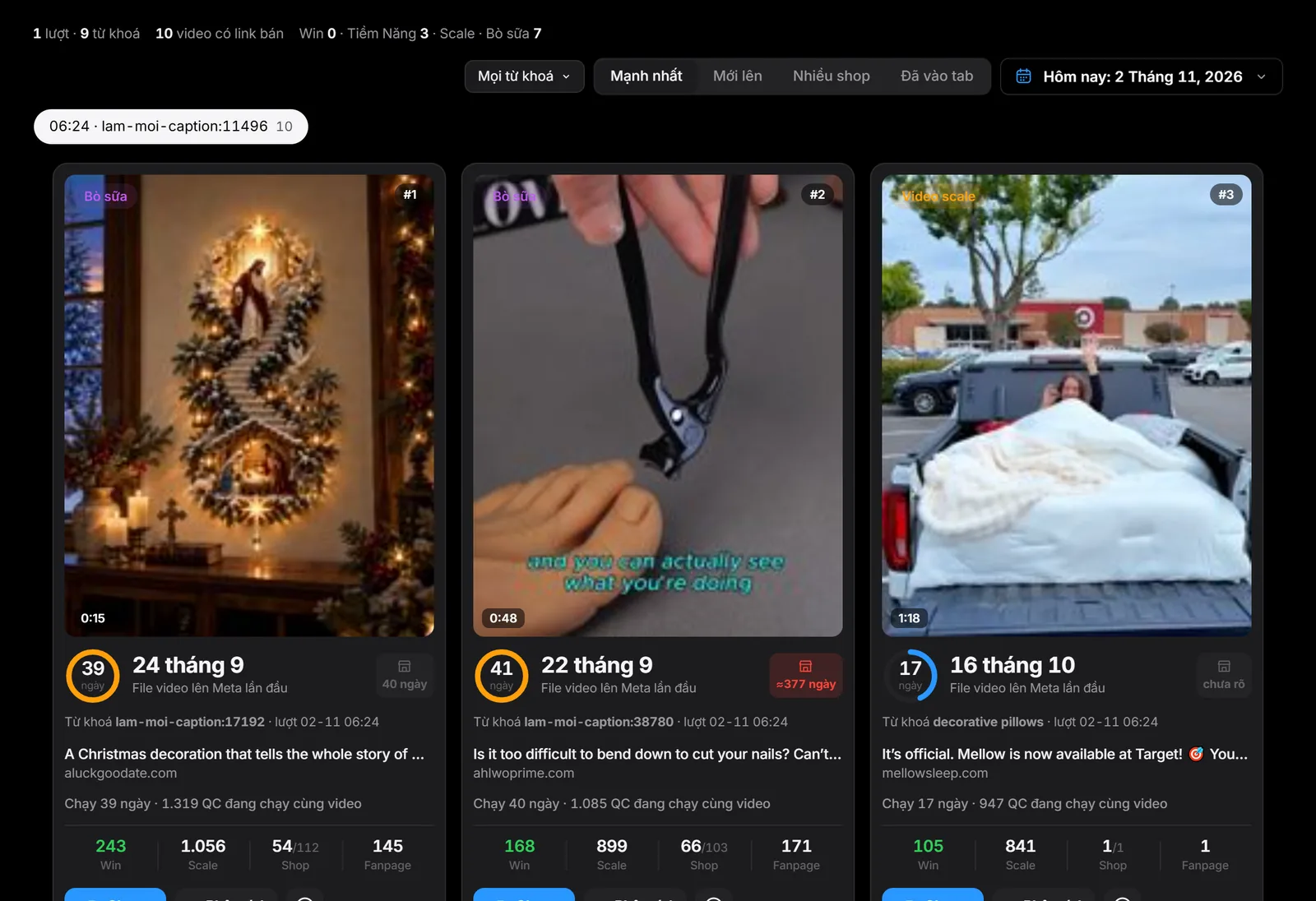
- The summary line at the top shows the number of runs, the number of keywords, the number of videos with a sales link, and how many videos have gone into Win, Potential, Scale · Evergreen.
- Click “All keywords” to filter by one keyword; there is a “Search keywords” field.
- Choose how to sort: “Strongest”, “Newest”, “Most shops” or “In a tab”.
- Each card shows the keyword and the run that found the video, plus the Win, Scale, Shops and Pages numbers as in the other tabs. Scroll down to load more.
Cards here have the Analysis, download video and Clone buttons just like in the Winning videos tab.
Session history
Every time you click scan is one session. The table has these columns:
| Column | Meaning |
|---|---|
| Length | When the session started. |
| Type | “Keyword scan”, “Store check” or “Shop tracking”. |
| Done | Number of keywords or shops in the session. |
| Ads collected | Number of ads that session pulled in. |
| New shops | Shops that appeared for the first time in this session. |
| New SKUs | Products that appeared for the first time in this session. |
| WIN | Number of products from that session that currently have the Win label. |
| Shops with a winning SKU | Names of the shops that have Win products. |
Click a row to see the list of keywords or shops in that session. The table shows runs in batches; click “See more” at the bottom to load older sessions.
Shop library
A list of shops that have ads in the part your app has scanned, with the shops that have the most ads at the top. The columns:
- Shops: the domain, click to open the shop’s page. A shop that only has a fanpage shows the fanpage name.
- Products running ads: the number of products currently running ads. A “?” means the shop hasn’t been inspected on its own, so the number is incomplete.
- Ads: the shop’s total ads.
- Status: “Watching” means the shop’s ad page has been inspected by domain; “Not watching” means it hasn’t.
- Traffic: monthly visits to the site.
Use the three tabs when picking products
- After each scan, open Scanned videos and sort by “In a tab” to see which keywords got videos into tabs.
- Check Session history to see which sessions produced many Win products, then keep scanning keywords near them.
- In Shop library, a “Not watching” shop with many ads is worth inspecting further.
Related articles
Thank you.